`: Optional parameter to specify the number of lines to insert (default is 50).
### `/selection`
Inserts the currently selected text. Equivalent to `agent: add selection to thread` ({#kb agent::AddSelectionToThread}).
Usage: `/selection`
## Commands in the Rules Library {#slash-commands-in-rules}
[Commands](#commands) can be used in rules, in the Rules Library (previously known as Prompt Library), to insert dynamic content or perform actions.
For example, if you want to create a rule where it is important for the model to know the date, you can use the `/now` command to insert the current date.
Slash commands in rules **only** work when they are used in text threads. Using them in non-text threads is not supported.
> **Note:** Slash commands in rules **must** be on their own line.
See the [list of commands](#commands) above for more information on commands, and what slash commands are available.
### Example
```plaintext
You are an expert Rust engineer. The user has asked you to review their project and answer some questions.
Here is some information about their project:
/file Cargo.toml
```
In the above example, the `/file` command is used to insert the contents of the `Cargo.toml` file (or all `Cargo.toml` files present in the project) into the rule.
## Nesting Rules
Similar to adding rules to the default rules, you can nest rules within other rules with the `/prompt` command (only supported in Text Threads currently).
You might want to nest rules to:
- Create templates on the fly
- Break collections like docs or references into smaller, mix-and-matchable parts
- Create variants of a similar rule (e.g., `Async Rust - Tokio` vs. `Async Rust - Async-std`)
### Example
```plaintext
Title: Zed-Flavored Rust
## About Zed
/prompt Zed: Zed (a rule about what Zed is)
## Rust - Zed Style
/prompt Rust: Async - Async-std (zed doesn't use tokio)
/prompt Rust: Zed-style Crates (we have some unique conventions)
/prompt Rust - Workspace deps (bias towards reusing deps from the workspace)
```
_The text in parentheses above are comments and are not part of the rule._
> **Note:** You can technically nest a rule within itself, but we don't recommend doing so.
By using nested rules, you can create modular and reusable rule components that can be combined in various ways to suit different scenarios.
> **Note:** When using slash commands to bring in additional context, the injected content can be edited directly inline in the text thread—edits here will not propagate to the saved rules.
## Extensibility
Additional slash commands can be provided by extensions.
See [Extension: Slash Commands](../extensions/slash-commands.md) to learn how to create your own.
## Advanced Concepts
### Rule Templates {#rule-templates}
Zed uses rule templates to power internal assistant features, like the terminal assistant, or the content rules used in the inline assistant.
Zed has the following internal rule templates:
- `content_prompt.hbs`: Used for generating content in the editor.
- `terminal_assistant_prompt.hbs`: Used for the terminal assistant feature.
At this point it is unknown if we will expand templates further to be user-creatable.
### Overriding Templates
> **Note:** It is not recommended to override templates unless you know what you are doing. Editing templates will break your assistant if done incorrectly.
Zed allows you to override the default rules used for various assistant features by placing custom Handlebars (.hbs) templates in your `~/.config/zed/prompt_overrides` directory.
The following templates can be overridden:
1. [`content_prompt.hbs`](https://github.com/zed-industries/zed/tree/main/assets/prompts/content_prompt.hbs): Used for generating content in the editor.
2. [`terminal_assistant_prompt.hbs`](https://github.com/zed-industries/zed/tree/main/assets/prompts/terminal_assistant_prompt.hbs): Used for the terminal assistant feature.
> **Note:** Be sure you want to override these, as you'll miss out on iteration on our built-in features.
> This should be primarily used when developing Zed.
You can customize these templates to better suit your needs while maintaining the core structure and variables used by Zed.
Zed will automatically reload your prompt overrides when they change on disk.
Consult Zed's [assets/prompts](https://github.com/zed-industries/zed/tree/main/assets/prompts) directory for current versions you can play with.
### History {#history}
After you submit your first message in a text thread, a name for your context is generated by the language model, and the context is automatically saved to your file system in
- `~/.config/zed/conversations` (macOS)
- `~/.local/share/zed/conversations` (Linux)
- `%LocalAppData%\Zed\conversations` (Windows)
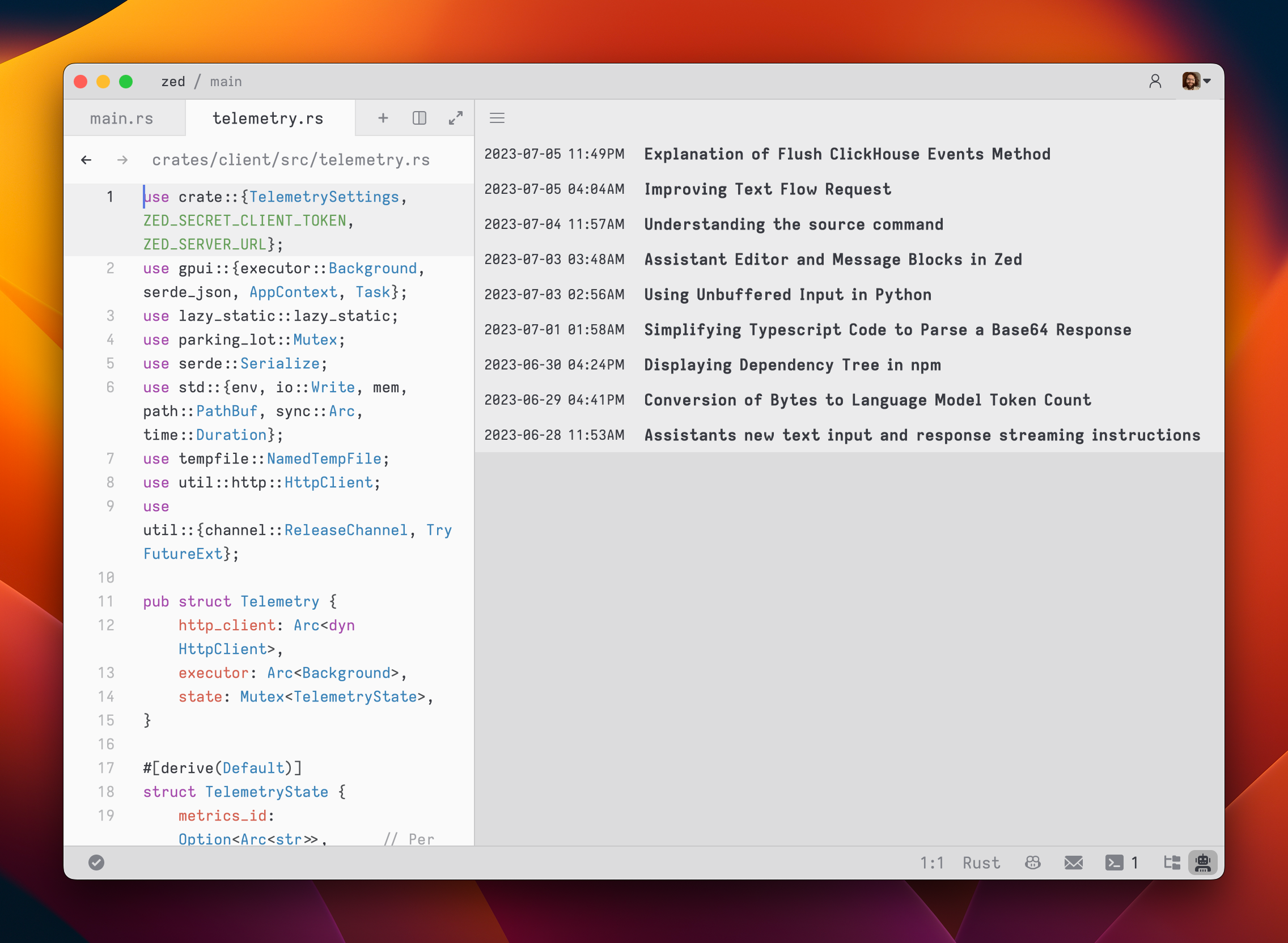
You can access and load previous contexts by clicking on the history button in the top-left corner of the agent panel.