 9fd3e0ca3b
Add `ExpandAllEntries` action, keybinding, and right-click context menu
entries for expand/collapse all in the project panel.

- Add `ExpandAllEntries` action + handler + `expand_all_entries()`
method
- Add `cmd-right` / `ctrl-right` keybinding for `ExpandAllEntries`,
mirroring
  the existing `cmd-left` for `CollapseAllEntries`
- Add "Expand All" to root-entry and folder right-click context menus
- Add keybinding hint to root-entry "Collapse All" context menu entry
- Per-worktree behavior: context menu actions affect only the selected
worktree,
  subfolder "Expand All" expands from that folder down

# Objective

The project panel had no discoverable way to expand or collapse all
entries. The only ways were keyboard shortcuts (`cmd-left` for collapse
all)
or the right-click context menu. The global `ExpandAllEntries` shortcut
(`cmd-right`) was also missing. This PR adds that shortcut and exposes
both actions in the context menu so users learn the keybindings while
keeping the UI minimal.

## Solution

- Add `ExpandAllEntries` action + handler + `expand_all_entries()`
method
- Add `cmd-right` / `ctrl-right` keybinding for `ExpandAllEntries`
(global),
  mirroring the existing `cmd-left` for `CollapseAllEntries`
- Add "Expand All" to the right-click context menu for both root entries
and
  subfolder entries
- Update root-entry "Collapse All" to show its keybinding hint via
  `.action(Box::new(CollapseAllEntries))`
- **Per-worktree behavior**: each root entry's context menu actions
affect
only that worktree, subfolder "Expand All" expands from that folder down

## Testing

- Added 6 GPUI tests in `project_panel_tests.rs`:
  - `test_expand_all_entries`: single worktree
- `test_expand_all_entries_multiple_worktrees`: global expand across
worktrees
  - `test_expand_all_entries_via_window_dispatch`: action dispatch path
  - `test_per_worktree_expand`: expand only the clicked worktree
- `test_per_worktree_collapse`: collapse only the clicked worktree, keep
root visible
  - `test_expand_all_entries_with_auto_fold`: expand with auto_fold_dirs
- Ran `cargo test -p project_panel`: 106 pass

**Manual testing for reviewers:**

1. Open a project with nested directories and open the Project Panel
2. Right-click a root entry, confirm "Expand All" and "Collapse All"
appear
   with their keybinding hints (`⌘→` / `⌘←`)
3. Right-click a subfolder, confirm "Expand All" and "Collapse All"
appear
4. Click "Expand All" on a subfolder, confirm only that folder's subtree
expands
5. Click "Collapse All", confirm children collapse but the root stays
visible
6. Open a multi-folder workspace. Right-click the second root and click
   "Expand All", confirm only that folder expands
7. Press `cmd-right` (or `ctrl-right`), confirm all worktrees expand
globally

Tested on macOS only. Linux and Windows should behave the same since
there
is no platform-specific code.

## Self-Review Checklist:

- [x] I've reviewed my own diff for quality, security, and reliability
- [x] Unsafe blocks (if any) have justifying comments
- [x] The content adheres to Zed's UI standards
([UX/UI](https://github.com/zed-industries/zed/blob/main/CONTRIBUTING.md#uiux-checklist)
and
[icon](https://github.com/zed-industries/zed/blob/main/crates/icons/README.md)
guidelines)
- [x] Tests cover the new/changed behavior
- [x] Performance impact has been considered and is acceptable

## Showcase


https://github.com/user-attachments/assets/adc501d7-8e3a-4687-aef0-dc00426d232d

---

Release Notes:

- Added `Expand All` and `Collapse All` to the project panel right-click
  context menu with keybinding hints.
- Added `cmd-right` / `ctrl-right` keybinding to expand all entries.

---------

Co-authored-by: Danilo Leal <daniloleal09@gmail.com>
Co-authored-by: Copilot <223556219+Copilot@users.noreply.github.com>
7.4 KiB
title, description
| title | description |
|---|---|
| Project Panel - Zed | Navigate workspace files and directories with Zed's project panel. Create, rename, trash and delete files and directories. |
Project Panel
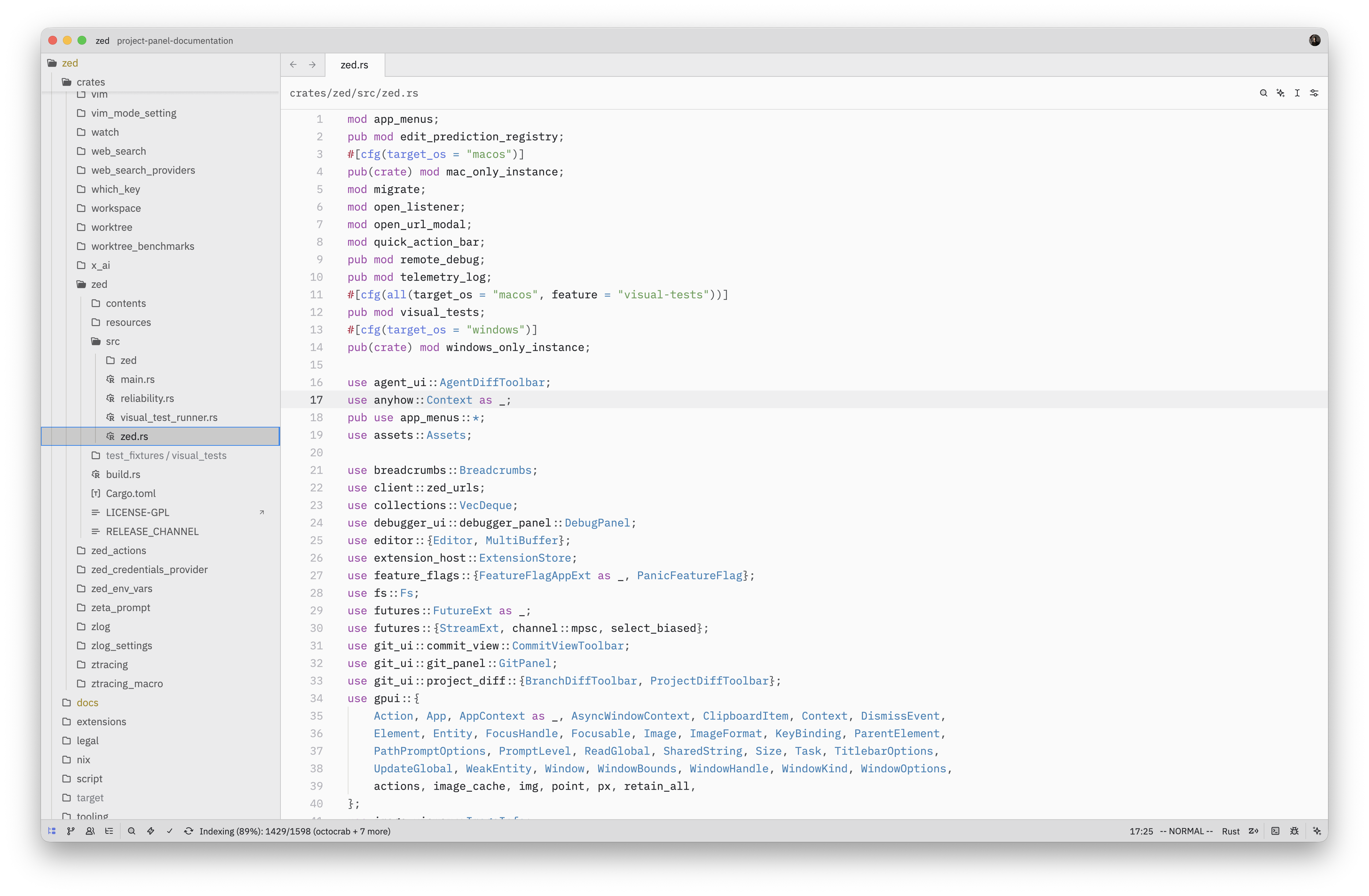
The project panel shows a tree view of your workspace's files and directories. Toggle it with {#action project_panel::ToggleFocus} ({#kb project_panel::ToggleFocus}), or click the Project Panel button in the status bar.
Navigating
Use the arrow keys to move through entries. {#kb project_panel::ExpandSelectedEntry} expands a directory and {#kb project_panel::CollapseSelectedEntry} collapses it. {#kb project_panel::CollapseAllEntries} collapses every directory at once. {#kb project_panel::ExpandAllEntries} expands every directory at once. Press {#kb project_panel::Open} or click to preview a selected file, without giving it a permanent tab. Editing the file or double-clicking it promotes it to a permanent tab.
Auto-reveal
By default, switching files in the editor will automatically highlight it in the
project panel and scroll it into view. This can be disabled with the
project_panel.auto_reveal_entries setting.
Sticky Scroll
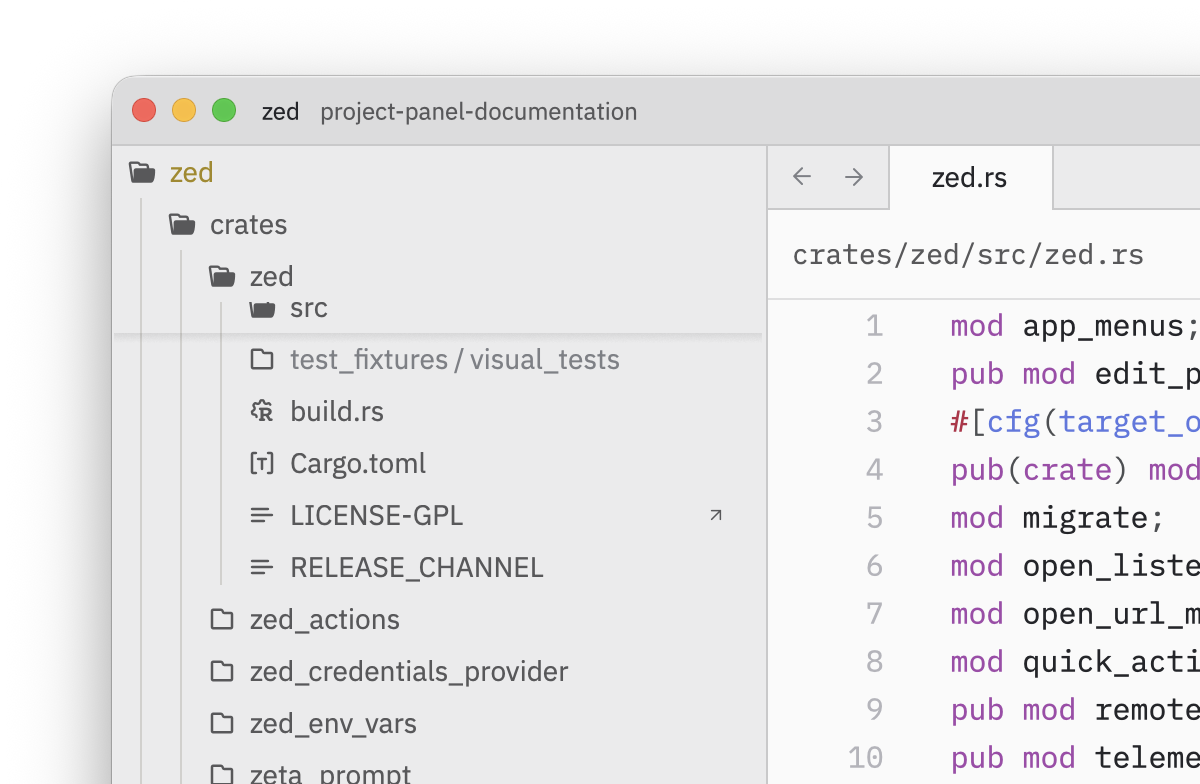
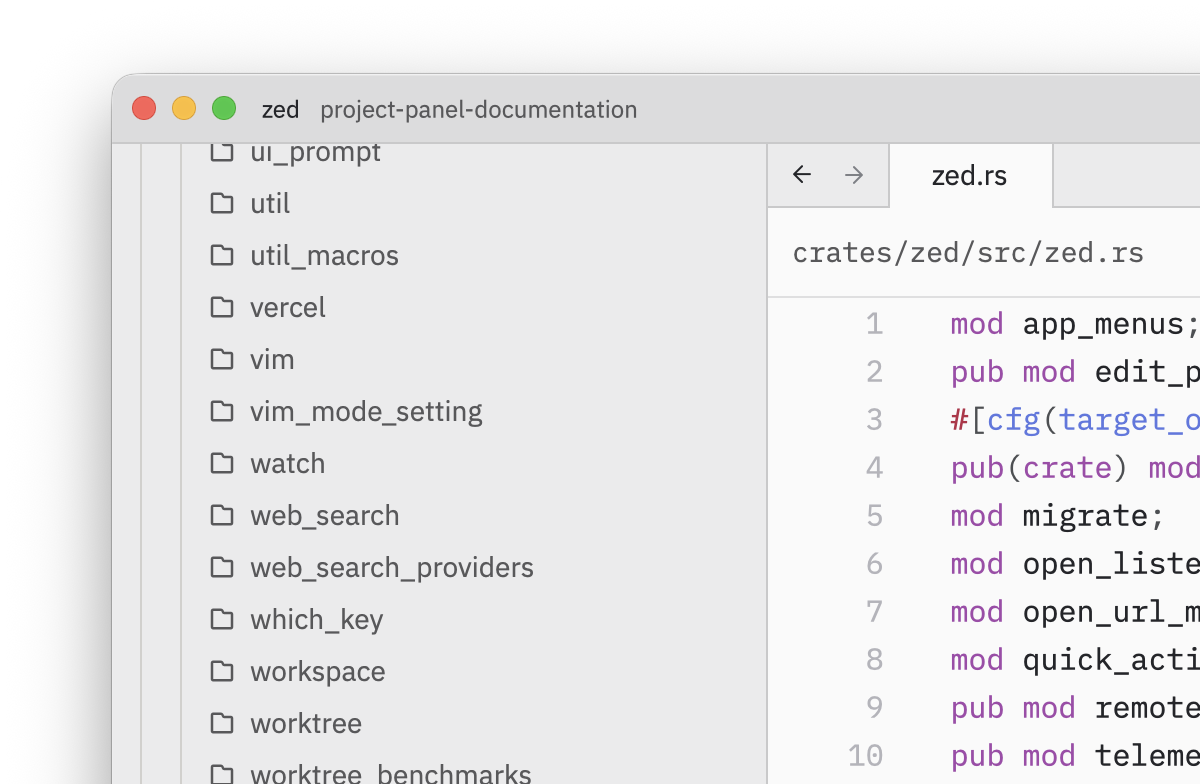
When project_panel.sticky_scroll is enabled (the default), ancestor directories pin themselves to the top
of the panel as you scroll, so you always know which directory you're on.
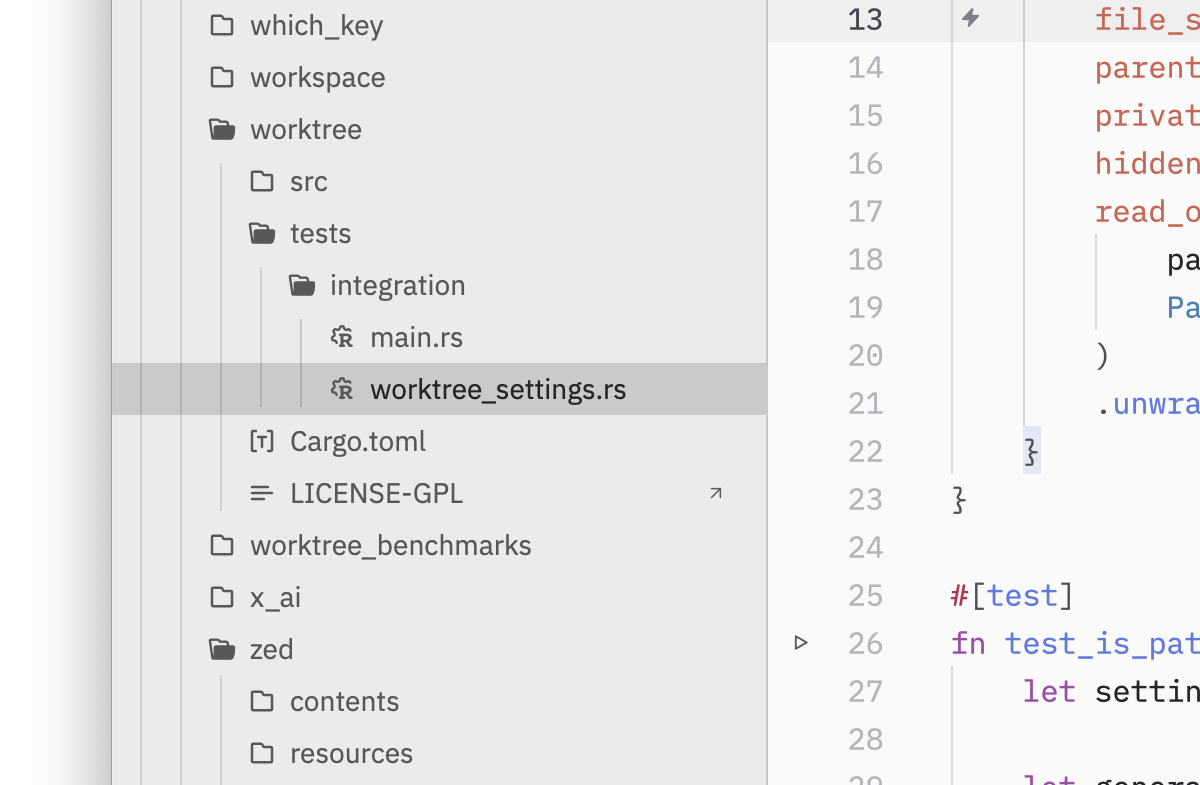
Directory Folding
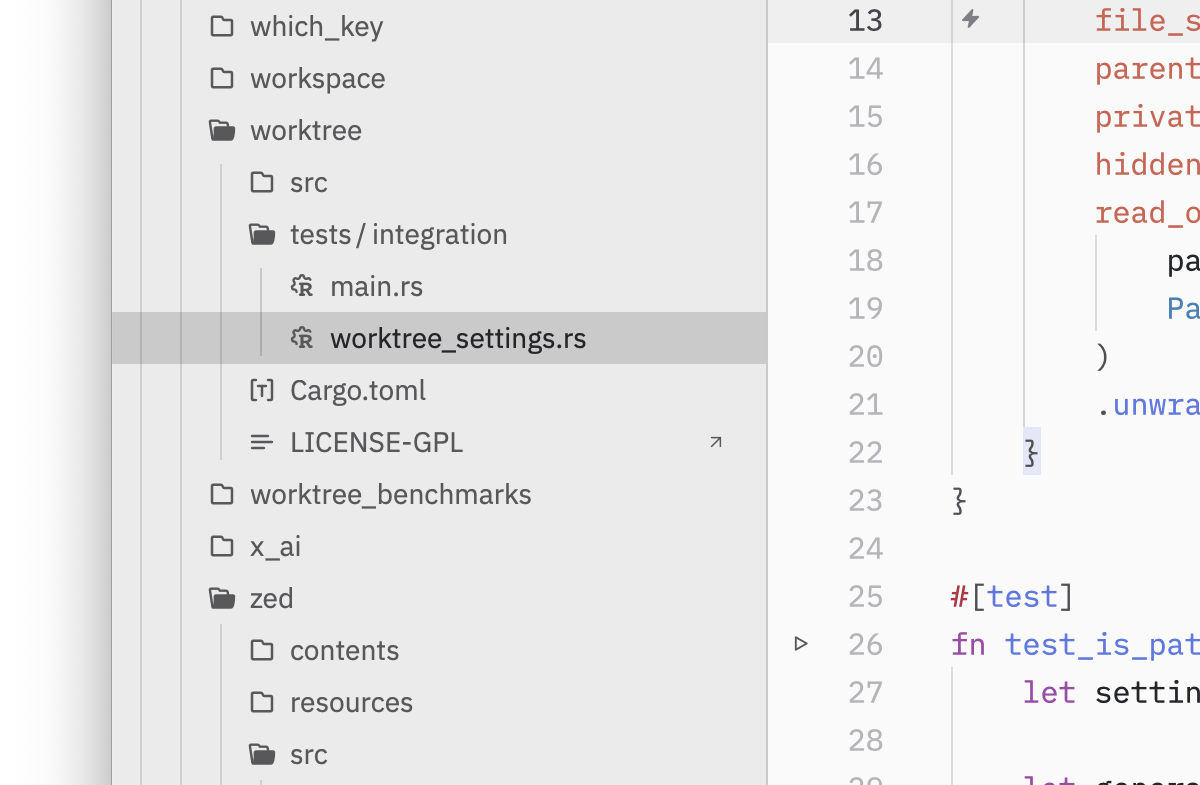
When project_panel.auto_fold_dirs is enabled (the default), chains of directories that each contain a
single child directory are collapsed into one row (for example,
src/utils/helpers instead of three separate levels). Right-click a folded
directory and choose Unfold Directory to expand the chain, or Fold
Directory to collapse it again.
Selecting Multiple Entries
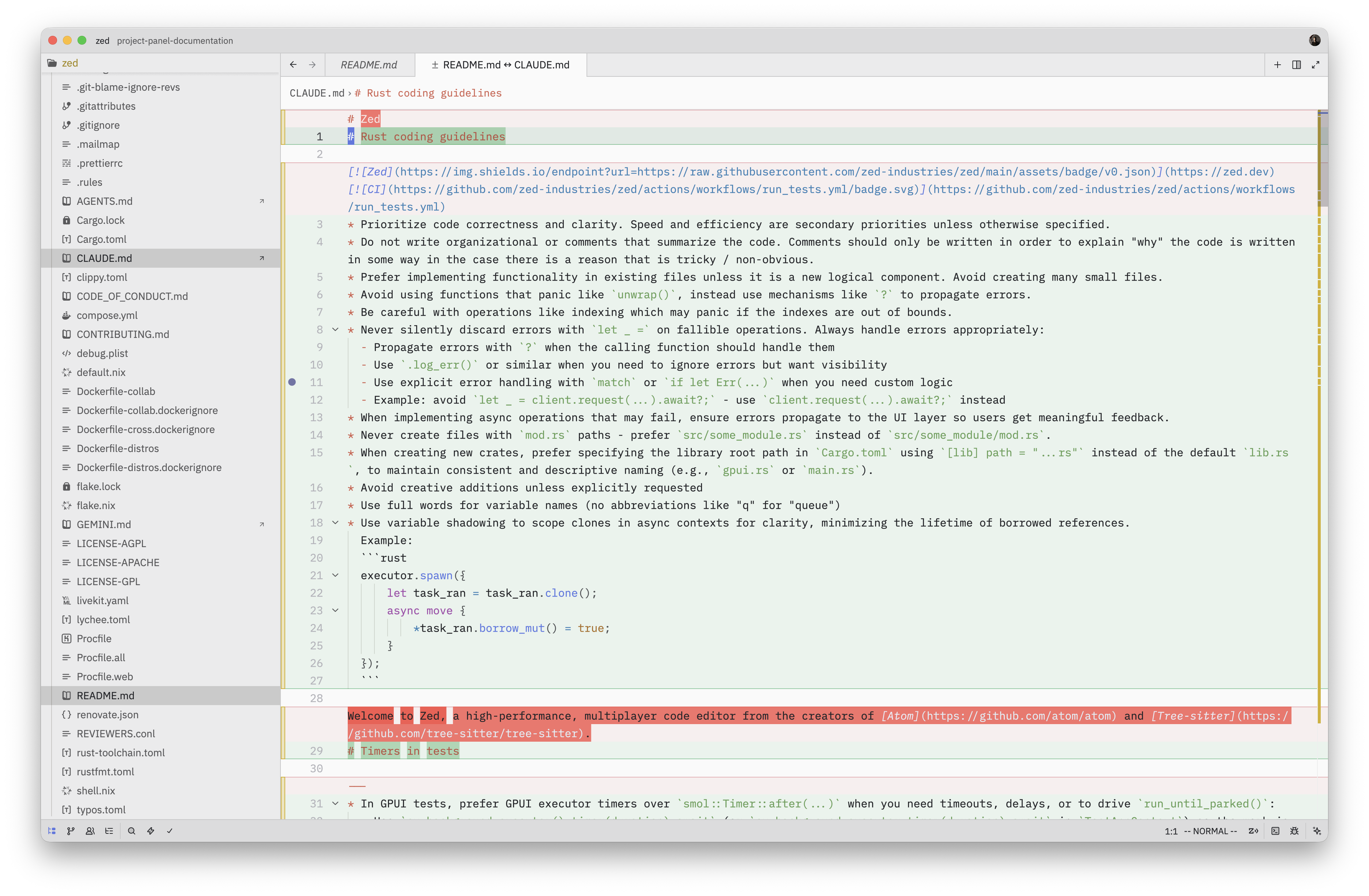
Hold shift while pressing the up/down arrow keys to mark additional entries.
Most file operations, like cut, copy, trash, delete and drag, apply to the full
set of marked entries.
When exactly two files are marked, {#action project_panel::CompareMarkedFiles} ({#kb project_panel::CompareMarkedFiles}) opens a diff view comparing them.
File Operations
Right-click an entry to see the full list of available operations, or use the keybindings below.
Creating Files and Directories
- {#action project_panel::NewFile} ({#kb project_panel::NewFile}) creates a new file inside the selected directory.
- {#action project_panel::NewDirectory} ({#kb project_panel::NewDirectory}) creates a new directory.
An inline editor appears so you can type the name. Press enter to
confirm or escape to cancel.
Renaming
Press {#kb project_panel::Rename} to rename the selected entry. The filename
stem is pre-selected so you can type a new name without accidentally changing
the extension. Press enter to confirm or escape to
cancel.
Cut, Copy, and Paste
- {#action project_panel::Cut} ({#kb project_panel::Cut}) marks entries for moving.
- {#action project_panel::Copy} ({#kb project_panel::Copy}) marks entries for copying.
- {#action project_panel::Paste} ({#kb project_panel::Paste}) places them in the selected directory.
When pasting would create a name conflict, Zed appends a "copy" suffix (e.g.,
file copy.txt, file copy 2.txt). If a single file is pasted with a generated
suffix, the rename editor opens automatically so you can adjust the name.
Duplicate
{#action project_panel::Duplicate} ({#kb project_panel::Duplicate}) copies and pastes the selected entries in one step.
Trash and Delete
- {#action project_panel::Trash} ({#kb project_panel::Trash}) moves entries to the system trash.
- {#action project_panel::Delete} ({#kb project_panel::Delete}) permanently deletes entries.
Both actions show a confirmation prompt listing the affected files. If any of the files have unsaved changes, the prompt warns you.
Drag and Drop
Drag entries within the panel to move them. Hold alt while dropping to copy
instead of move. You can also drag files from your operating system's file
manager into the project panel to copy them into the project. Drag and drop can
be disabled with the project_panel.drag_and_drop setting.
Git Integration
When project_panel.git_status is enabled (the default), file and directory names are tinted
to reflect their git status—modified, added, deleted, untracked, or conflicting.
Setting project_panel.git_status_indicator to true (disabled by default) adds a letter badge next
to each name: M (modified), A (added), D (deleted), U
(untracked) or ! (conflict).
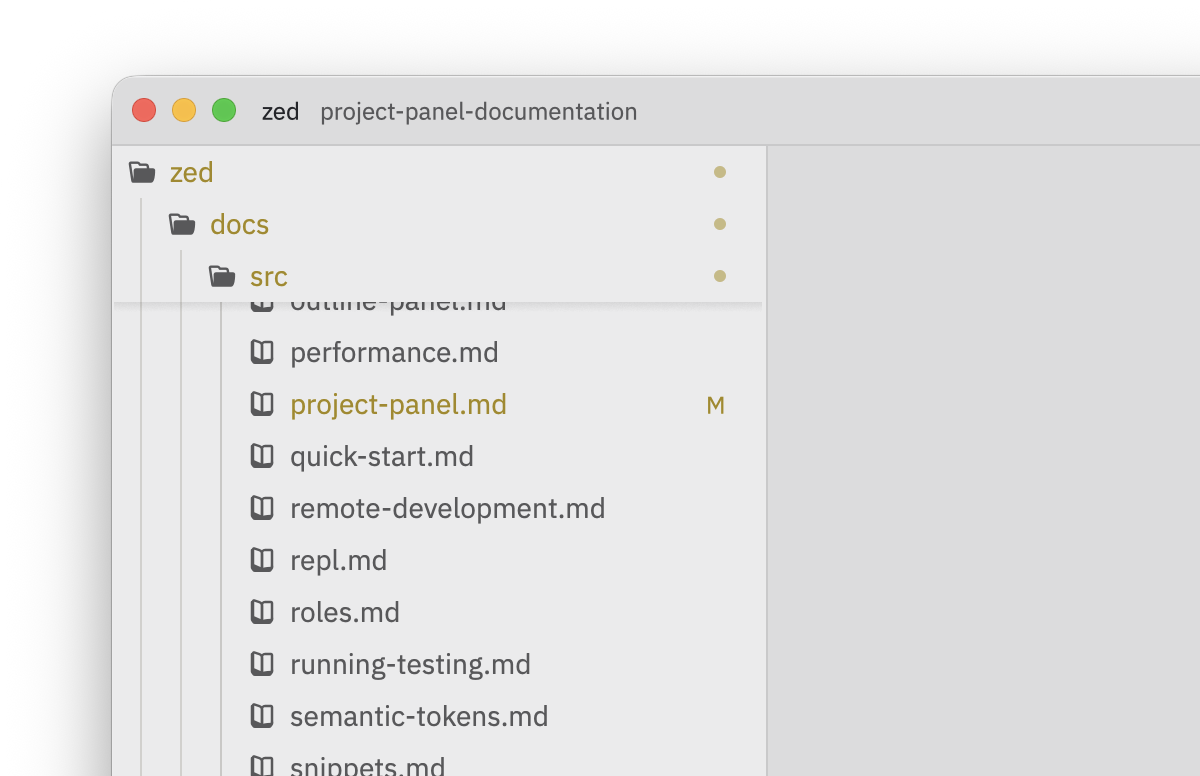
Use {#action project_panel::SelectNextGitEntry} and {#action project_panel::SelectPrevGitEntry} to jump between tracked files with uncommitted changes. The right-click menu also offers Restore File to discard changes and View File History to browse a file's commit log.
Diagnostics
The project_panel.show_diagnostics setting controls whether error and warning
indicators appear on file and folder icons. Set it to "all" to see both errors
and warnings, "errors" for errors only, or "off" to hide them. Diagnostics
propagate upward—if a file deep in a directory has an error, its ancestor
folders show an indicator too.
Enable project_panel.diagnostic_badges (disabled by default) to display numeric error and warning
counts next to each entry. Use {#action project_panel::SelectNextDiagnostic} and
{#action project_panel::SelectPrevDiagnostic} to navigate between files that
have diagnostics.
See also Diagnostics & Quick Fixes for editor and tab diagnostic settings.
Filtering and Sorting
Hiding Files
project_panel.hide_gitignorehides files matched by.gitignore. Toggle this with {#action project_panel::ToggleHideGitIgnore}.project_panel.hide_hiddenhides dotfiles and other hidden entries. Toggle with {#action project_panel::ToggleHideHidden}.
Sorting
The project_panel.sort_mode setting controls grouping:
"directories_first"(default) — directories appear before files at each level."files_first"— files appear before directories."mixed"— directories and files are sorted together.
The project_panel.sort_order setting controls name comparison:
"default"— case-insensitive natural sort (file2beforefile10)."upper"— uppercase names grouped first, then lowercase."lower"— lowercase names grouped first, then uppercase."unicode"— raw Unicode codepoint order with no case folding.
Other Actions
- {#action project_panel::RevealInFileManager} ({#kb project_panel::RevealInFileManager}) reveals the selected entry in Finder / File Explorer.
- {#action project_panel::NewSearchInDirectory} ({#kb project_panel::NewSearchInDirectory}) opens a project search scoped to the selected directory.
- {#action project_panel::RemoveFromProject} removes a workspace root folder from the project.