 morgankrey
6daa541e77
morgankrey
6daa541e77
## Summary

Comprehensive remediation of 146 documentation files to align with Zed's
documentation conventions and brand voice guidelines.

## Changes

### YAML Frontmatter
- Added `title` and `description` frontmatter to all docs missing it

### Settings UI Pattern
- Updated 48+ files to show Settings Editor before JSON examples
- Pattern: `Configure X in Settings ({#kb zed::OpenSettings}), or add to
your settings file:`
- Added `([how to edit](./configuring-zed.md#settings-files))` links for
JSON-only settings

### Brand Voice Fixes
- Removed exclamation points (command-palette, key-bindings, repl,
privacy-and-security, etc.)
- Simplified em dash chains to parentheticals (environment,
troubleshooting, agent-panel, etc.)
- Fixed marketing language (yarn.md intro, development/linux.md)

### Terminology Alignment
- `settings UI` -> `Settings Editor`
- `sidebar` -> specific panel names (Project Panel, Collab Panel)
- `directory` -> `folder` in non-technical contexts
- `workspace` -> `project` in non-LSP contexts
- `Command Palette` -> `command palette` (lowercase)

### Callout Standardization
- Converted various callout formats to standard `> **Note:**` pattern

## Related

Depends on conventions established in #49176.

Release Notes:

- N/A
50 lines
2.3 KiB
Markdown
50 lines
2.3 KiB
Markdown
---
|
|
title: Tab Switcher
|
|
description: "The Tab Switcher provides a quick way to navigate between open tabs in Zed. It displays a list of your open tabs sorted by recent usage, making it easy to ju..."
|
|
---
|
|
|
|
# Tab Switcher
|
|
|
|
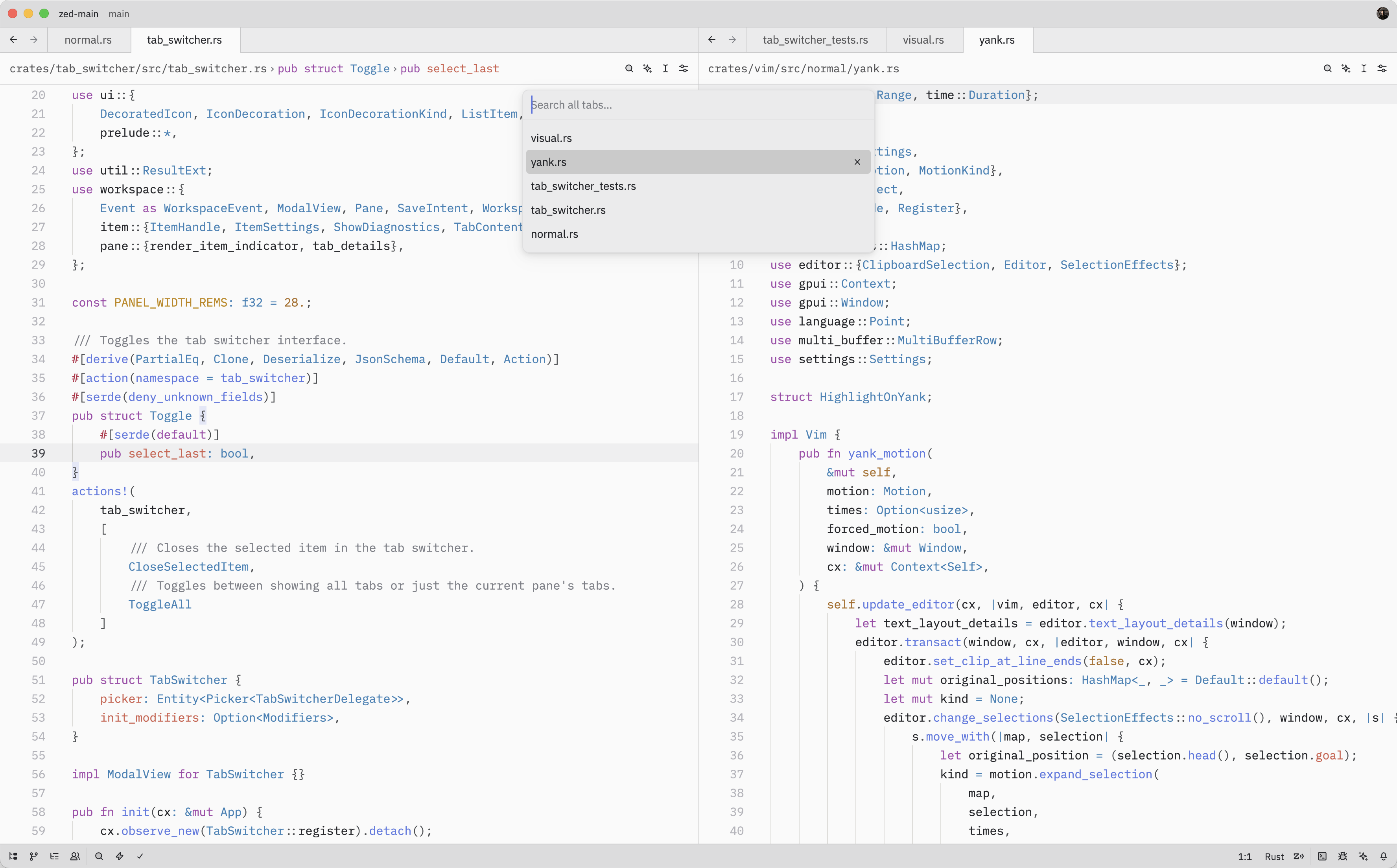
The Tab Switcher provides a quick way to navigate between open tabs in Zed. It
|
|
displays a list of your open tabs sorted by recent usage, making it easy to jump
|
|
back to whatever you were just working on.
|
|
|
|
|
|
|
|
## Quick Switching
|
|
|
|
When the Tab Switcher is opened using {#kb tab_switcher::Toggle}, instead of
|
|
running the {#action tab_switcher::Toggle} from the command palette, it'll stay
|
|
active as long as the <kbd class="keybinding">ctrl</kbd> key is held down.
|
|
|
|
While holding down <kbd class="keybinding">ctrl</kbd>, each subsequent <kbd
|
|
class="keybinding">tab</kbd> press cycles to the next item (<kbd
|
|
class="keybinding">shift</kbd> to cycle backwards) and, when <kbd
|
|
class="keybinding">ctrl</kbd> is released, the selected item is confirmed and
|
|
the switcher is closed.
|
|
|
|
## Opening the Tab Switcher
|
|
|
|
The Tab Switcher can also be opened with either {#action tab_switcher::Toggle} ({#kb tab_switcher::Toggle})
|
|
or {#action tab_switcher::ToggleAll}.
|
|
|
|
While the Tab Switcher is open, you can:
|
|
|
|
- Press {#kb menu::SelectNext} to move to the next tab in the list
|
|
- Press {#kb menu::SelectPrevious} to move to the previous tab
|
|
- Press <kbd class="keybinding">enter</kbd> to confirm the selected tab and close the switcher
|
|
- Press <kbd class="keybinding">escape</kbd> to close the switcher and return to the original tab from which
|
|
the switcher was opened
|
|
- Press {#kb tab_switcher::CloseSelectedItem} to close the currently selected tab
|
|
|
|
As you navigate through the list, Zed will update the pane's active item to
|
|
match the selected tab.
|
|
|
|
## Action Reference
|
|
|
|
| Action | Description |
|
|
| ----------------------------------------- | ------------------------------------------------- |
|
|
| {#action tab_switcher::Toggle} | Open the Tab Switcher for the current pane |
|
|
| {#action tab_switcher::ToggleAll} | Open the Tab Switcher showing tabs from all panes |
|
|
| {#action tab_switcher::CloseSelectedItem} | Close the selected tab in the Tab Switcher |
|