 morgankrey
9168df6260
morgankrey
9168df6260
## Summary

Comprehensive remediation of 146 documentation files to align with Zed's
documentation conventions and brand voice guidelines.

## Changes

### YAML Frontmatter
- Added `title` and `description` frontmatter to all docs missing it

### Settings UI Pattern
- Updated 48+ files to show Settings Editor before JSON examples
- Pattern: `Configure X in Settings ({#kb zed::OpenSettings}), or add to
your settings file:`
- Added `([how to edit](./configuring-zed.md#settings-files))` links for
JSON-only settings

### Brand Voice Fixes
- Removed exclamation points (command-palette, key-bindings, repl,
privacy-and-security, etc.)
- Simplified em dash chains to parentheticals (environment,
troubleshooting, agent-panel, etc.)
- Fixed marketing language (yarn.md intro, development/linux.md)

### Terminology Alignment
- `settings UI` -> `Settings Editor`
- `sidebar` -> specific panel names (Project Panel, Collab Panel)
- `directory` -> `folder` in non-technical contexts
- `workspace` -> `project` in non-LSP contexts
- `Command Palette` -> `command palette` (lowercase)

### Callout Standardization
- Converted various callout formats to standard `> **Note:**` pattern

## Related

Depends on conventions established in #49176.

Release Notes:

- N/A
262 lines
10 KiB
Markdown
262 lines
10 KiB
Markdown
---
|
|
title: AI Chat in Your Editor - Zed Text Threads
|
|
description: Chat with LLMs directly in your editor with Zed's text threads. Full control over context, message roles, and slash commands.
|
|
---
|
|
|
|
# Text Threads
|
|
|
|
Text threads in the [Agent Panel](./agent-panel.md) work like a regular editor.
|
|
You can use custom keybindings, multiple cursors, and all the standard editing features while chatting.
|
|
|
|
## Text Threads vs. Threads
|
|
|
|
Text Threads were Zed's original AI interface.
|
|
In May 2025, Zed introduced the current [Agent Panel](./agent-panel.md), designed for agentic workflows.
|
|
|
|
The key difference: text threads don't support tool calls and many other more modern agentic features.
|
|
They can't autonomously read files, write code, or run commands on your behalf.
|
|
Text Threads are for simpler conversational interactions where you send text and receive text responses back.
|
|
|
|
Therefore, [MCP servers](./mcp.md) and [external agents](./external-agents.md) are also not available in Text Threads.
|
|
|
|
## Usage Overview
|
|
|
|
Text threads organize content into message blocks with roles:
|
|
|
|
- `You`
|
|
- `Assistant`
|
|
- `System`
|
|
|
|
To begin, type your message in a `You` block.
|
|
As you type, the remaining token count for the selected model updates automatically.
|
|
|
|
To add context from an editor, highlight text and run `agent: add selection to thread` ({#kb agent::AddSelectionToThread}).
|
|
If the selection is code, Zed will wrap it in a fenced code block.
|
|
|
|
To submit a message, use {#kb assistant::Assist} (`assistant: assist`).
|
|
In text threads, {#kb editor::Newline} inserts a new line instead of submitting, which preserves standard editor behavior.
|
|
|
|
After you submit a message, the response is streamed below in an `Assistant` message block.
|
|
You can cancel the stream at any point with <kbd>escape</kbd>, or start a new conversation at any time via <kbd>cmd-n|ctrl-n</kbd>.
|
|
|
|
Text threads support straightforward conversations, but you can also go back and edit earlier messages—including previous LLM responses—to change direction, refine context, or correct mistakes without starting a new thread or spending tokens on follow-up corrections.
|
|
If you want to remove a message block entirely, place your cursor at the beginning of the block and use the `delete` key.
|
|
|
|
A typical workflow might involve making edits and adjustments throughout the context to refine your inquiry or provide additional information.
|
|
Here's an example:
|
|
|
|
1. Write text in a `You` block.
|
|
2. Submit the message with {#kb assistant::Assist}.
|
|
3. Receive an `Assistant` response that doesn't meet your expectations.
|
|
4. Cancel the response with <kbd>escape</kbd>.
|
|
5. Erase the content of the `Assistant` message block and remove the block entirely.
|
|
6. Add additional context to your original message.
|
|
7. Submit the message with {#kb assistant::Assist}.
|
|
|
|
You can also cycle the role of a message block by clicking on the role, which is useful when you receive a response in an `Assistant` block that you want to edit and send back up as a `You` block.
|
|
|
|
## Commands Overview {#commands}
|
|
|
|
Type `/` at the beginning of a line to see available slash commands:
|
|
|
|
- `/default`: Inserts the default rule
|
|
- `/diagnostics`: Injects errors reported by the project's language server
|
|
- `/fetch`: Fetches the content of a webpage and inserts it
|
|
- `/file`: Inserts a single file or a directory of files
|
|
- `/now`: Inserts the current date and time
|
|
- `/prompt`: Adds a custom-configured prompt to the context ([see Rules Library](./rules.md#rules-library))
|
|
- `/symbols`: Inserts the current tab's active symbols
|
|
- `/tab`: Inserts the content of the active tab or all open tabs
|
|
- `/terminal`: Inserts a select number of lines of output from the terminal
|
|
- `/selection`: Inserts the selected text
|
|
|
|
> **Note:** Remember, commands are only evaluated when the text thread is created or when the command is inserted, so a command like `/now` won't continuously update, or `/file` commands won't keep their contents up to date.
|
|
|
|
### `/default`
|
|
|
|
Read more about `/default` in the [Rules: Editing the Default Rules](./rules.md#default-rules) section.
|
|
|
|
Usage: `/default`
|
|
|
|
### `/diagnostics`
|
|
|
|
Injects errors reported by the project's language server into the context.
|
|
|
|
Usage: `/diagnostics [--include-warnings] [path]`
|
|
|
|
- `--include-warnings`: Optional flag to include warnings in addition to errors.
|
|
- `path`: Optional path to limit diagnostics to a specific file or directory.
|
|
|
|
### `/file`
|
|
|
|
Inserts the content of a file or directory into the context. Supports glob patterns.
|
|
|
|
Usage: `/file <path>`
|
|
|
|
Examples:
|
|
|
|
- `/file src/index.js` - Inserts the content of `src/index.js` into the context.
|
|
- `/file src/*.js` - Inserts the content of all `.js` files in the `src` directory.
|
|
- `/file src` - Inserts the content of all files in the `src` directory.
|
|
|
|
### `/now`
|
|
|
|
Inserts the current date and time. Useful for informing the model about its knowledge cutoff relative to now.
|
|
|
|
Usage: `/now`
|
|
|
|
### `/prompt`
|
|
|
|
Inserts a rule from the Rules Library into the context. Rules can nest other rules.
|
|
|
|
Usage: `/prompt <prompt_name>`
|
|
|
|
Related: `/default`
|
|
|
|
### `/symbols`
|
|
|
|
Inserts the active symbols (functions, classes, etc.) from the current tab, providing a structural overview of the file.
|
|
|
|
Usage: `/symbols`
|
|
|
|
### `/tab`
|
|
|
|
Inserts the content of the active tab or all open tabs.
|
|
|
|
Usage: `/tab [tab_name|all]`
|
|
|
|
- `tab_name`: Optional name of a specific tab to insert.
|
|
- `all`: Insert content from all open tabs.
|
|
|
|
Examples:
|
|
|
|
- `/tab` - Inserts the content of the active tab.
|
|
- `/tab "index.js"` - Inserts the content of the tab named "index.js".
|
|
- `/tab all` - Inserts the content of all open tabs.
|
|
|
|
### `/terminal`
|
|
|
|
Inserts recent terminal output (default: 50 lines).
|
|
|
|
Usage: `/terminal [<number>]`
|
|
|
|
- `<number>`: Optional parameter to specify the number of lines to insert (default is 50).
|
|
|
|
### `/selection`
|
|
|
|
Inserts the currently selected text. Equivalent to `agent: add selection to thread` ({#kb agent::AddSelectionToThread}).
|
|
|
|
Usage: `/selection`
|
|
|
|
## Commands in the Rules Library {#slash-commands-in-rules}
|
|
|
|
[Commands](#commands) can be used in rules, in the Rules Library (previously known as Prompt Library), to insert dynamic content or perform actions.
|
|
For example, if you want to create a rule where it is important for the model to know the date, you can use the `/now` command to insert the current date.
|
|
|
|
<div class="warning">
|
|
|
|
Slash commands in rules **only** work when they are used in text threads. Using them in non-text threads is not supported.
|
|
|
|
</div>
|
|
|
|
> **Note:** Slash commands in rules **must** be on their own line.
|
|
|
|
See the [list of commands](#commands) above for more information on commands, and what slash commands are available.
|
|
|
|
### Example
|
|
|
|
```plaintext
|
|
You are an expert Rust engineer. The user has asked you to review their project and answer some questions.
|
|
|
|
Here is some information about their project:
|
|
|
|
/file Cargo.toml
|
|
```
|
|
|
|
In the above example, the `/file` command is used to insert the contents of the `Cargo.toml` file (or all `Cargo.toml` files present in the project) into the rule.
|
|
|
|
## Nesting Rules
|
|
|
|
Similar to adding rules to the default rules, you can nest rules within other rules with the `/prompt` command (only supported in Text Threads currently).
|
|
|
|
You might want to nest rules to:
|
|
|
|
- Create templates on the fly
|
|
- Break collections like docs or references into smaller, mix-and-matchable parts
|
|
- Create variants of a similar rule (e.g., `Async Rust - Tokio` vs. `Async Rust - Async-std`)
|
|
|
|
### Example
|
|
|
|
```plaintext
|
|
Title: Zed-Flavored Rust
|
|
|
|
## About Zed
|
|
|
|
/prompt Zed: Zed (a rule about what Zed is)
|
|
|
|
## Rust - Zed Style
|
|
|
|
/prompt Rust: Async - Async-std (zed doesn't use tokio)
|
|
/prompt Rust: Zed-style Crates (we have some unique conventions)
|
|
/prompt Rust - Workspace deps (bias towards reusing deps from the workspace)
|
|
```
|
|
|
|
_The text in parentheses above are comments and are not part of the rule._
|
|
|
|
> **Note:** You can technically nest a rule within itself, but we don't recommend doing so.
|
|
|
|
By using nested rules, you can create modular and reusable rule components that can be combined in various ways to suit different scenarios.
|
|
|
|
> **Note:** When using slash commands to bring in additional context, the injected content can be edited directly inline in the text thread—edits here will not propagate to the saved rules.
|
|
|
|
## Extensibility
|
|
|
|
Additional slash commands can be provided by extensions.
|
|
|
|
See [Extension: Slash Commands](../extensions/slash-commands.md) to learn how to create your own.
|
|
|
|
## Advanced Concepts
|
|
|
|
### Rule Templates {#rule-templates}
|
|
|
|
Zed uses rule templates to power internal assistant features, like the terminal assistant, or the content rules used in the inline assistant.
|
|
|
|
Zed has the following internal rule templates:
|
|
|
|
- `content_prompt.hbs`: Used for generating content in the editor.
|
|
- `terminal_assistant_prompt.hbs`: Used for the terminal assistant feature.
|
|
|
|
At this point it is unknown if we will expand templates further to be user-creatable.
|
|
|
|
### Overriding Templates
|
|
|
|
> **Note:** It is not recommended to override templates unless you know what you are doing. Editing templates will break your assistant if done incorrectly.
|
|
|
|
Zed allows you to override the default rules used for various assistant features by placing custom Handlebars (.hbs) templates in your `~/.config/zed/prompt_overrides` directory.
|
|
|
|
The following templates can be overridden:
|
|
|
|
1. [`content_prompt.hbs`](https://github.com/zed-industries/zed/tree/main/assets/prompts/content_prompt.hbs): Used for generating content in the editor.
|
|
|
|
2. [`terminal_assistant_prompt.hbs`](https://github.com/zed-industries/zed/tree/main/assets/prompts/terminal_assistant_prompt.hbs): Used for the terminal assistant feature.
|
|
|
|
> **Note:** Be sure you want to override these, as you'll miss out on iteration on our built-in features.
|
|
> This should be primarily used when developing Zed.
|
|
|
|
You can customize these templates to better suit your needs while maintaining the core structure and variables used by Zed.
|
|
Zed will automatically reload your prompt overrides when they change on disk.
|
|
|
|
Consult Zed's [assets/prompts](https://github.com/zed-industries/zed/tree/main/assets/prompts) directory for current versions you can play with.
|
|
|
|
### History {#history}
|
|
|
|
After you submit your first message in a text thread, a name for your context is generated by the language model, and the context is automatically saved to your file system in
|
|
|
|
- `~/.config/zed/conversations` (macOS)
|
|
- `~/.local/share/zed/conversations` (Linux)
|
|
- `%LocalAppData%\Zed\conversations` (Windows)
|
|
|
|
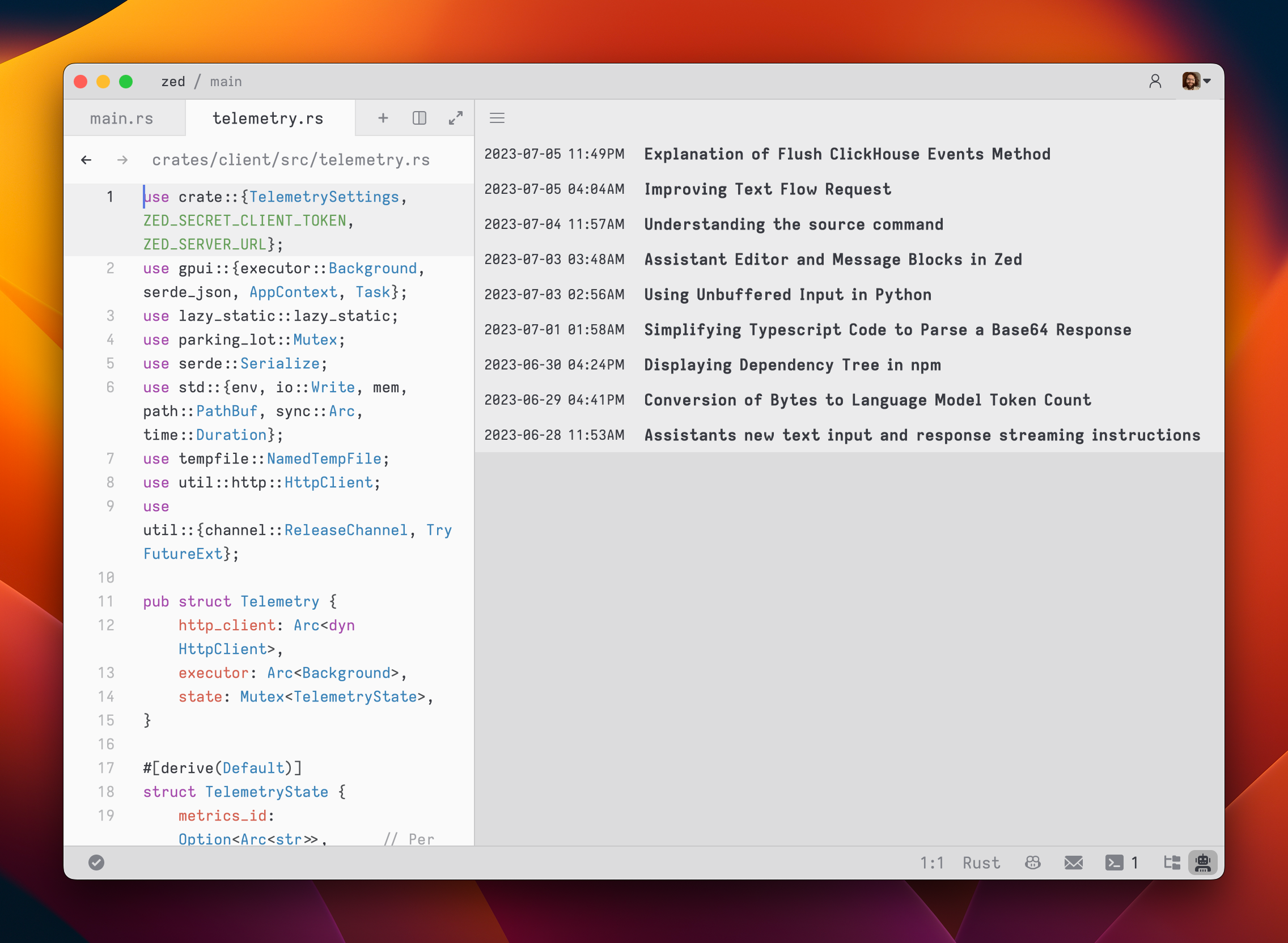
You can access and load previous contexts by clicking on the history button in the top-left corner of the agent panel.
|
|
|
|
|